If your team lost Outlook on Thursday, you may be able to get a Microsoft 365 SLA credit on your bill. Microsoft will not apply it for you. An admin at your company has to ask for it, with the right details, before December 31, 2026.
We went through Microsoft’s service agreement, its documentation and the live incident record in the Microsoft 365 admin center to work out who qualifies, how much is on the table and what the catch is. The short version: the credit is real, the deadline is real, and the fine print matters.
What happened in the Microsoft 365 outage
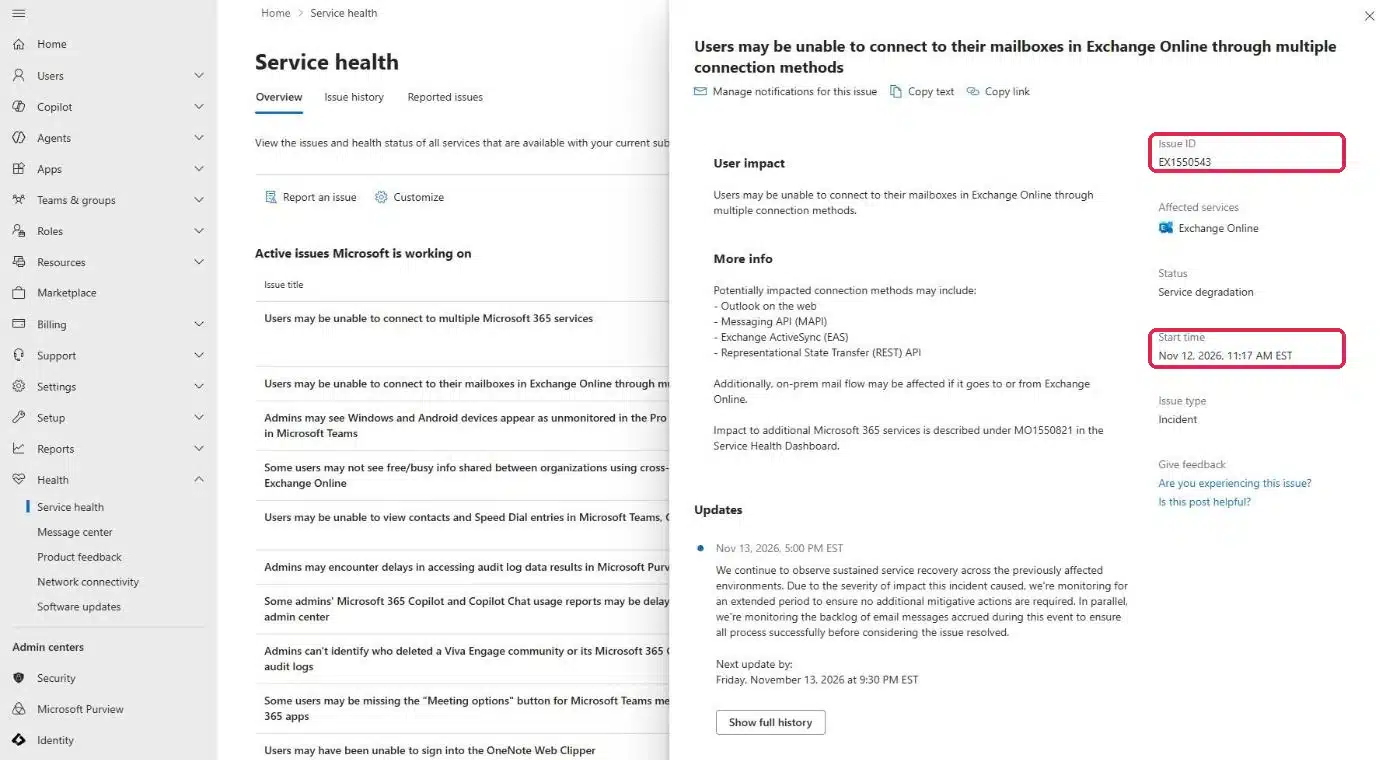
Microsoft’s incident record shows the Exchange Online problem started at 11:17 AM Eastern on Thursday, November 12, 2026. Microsoft tracks it as incident EX1550543: users could not reach their mailboxes through Outlook on the web, desktop Outlook, mobile mail and other connection methods.
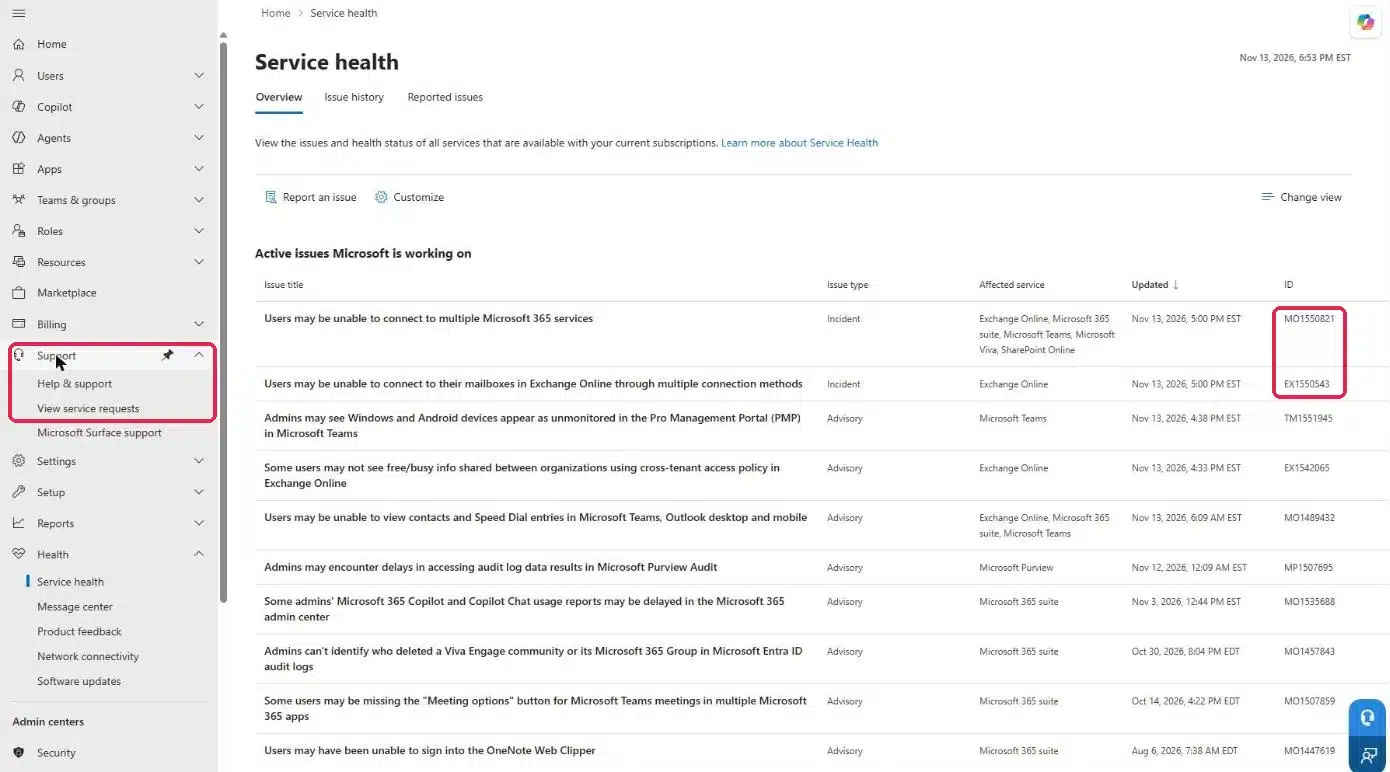
At 1:26 PM Eastern, Microsoft opened a second incident, MO1550821, for other Microsoft 365 services that depend on Exchange Online, including parts of Teams, SharePoint and Copilot. A separate, shorter Teams incident in the Americas that morning, TM1550488, was resolved before the main outage began.
When we checked the admin center at 5:00 PM Eastern on Friday, November 13, both main incidents were still listed as “Service degradation.” Microsoft said it was seeing sustained recovery and was watching the backlog of delayed email before calling it resolved.
What a Microsoft 365 SLA credit is
Business plans for Microsoft 365 come with a service level agreement (SLA). For services such as Exchange Online, Microsoft commits to 99.9% uptime each calendar month. When uptime falls below that, you can ask for a service credit, which is a percentage of that month’s fees for the affected service.
| Monthly uptime | Service credit | Downtime in November, if every user was down |
|---|---|---|
| Below 99.9% | 25% | More than about 43 minutes |
| Below 99% | 50% | More than about 7.2 hours |
| Below 95% | 100% | More than about 36 hours |
November has 43,200 minutes, which is where those downtime figures come from.
The fine print on a Microsoft 365 SLA credit
- Credits are not automatic. Microsoft’s own training material says an admin submits a claim and the credit follows Microsoft’s approval.
- The deadline is December 31, 2026. A claim has to reach Microsoft by the end of the calendar month after the month of the incident.
- You need the incident IDs. For this outage they are EX1550543 and MO1550821. We confirmed both in the admin center.
- The 43-minute mark only applies if everyone was down. Uptime is measured in user-minutes, so it depends on how many of your users were affected and for how long. If half your staff were down for an hour, you are still above 99.9%.
- It is a credit, not cash. It comes off a future bill, covers only the service that went down and not your whole Microsoft 365 plan, and Microsoft decides each claim.
- The evidence takes longer than the form. Opening the request is quick. Gathering what Microsoft asks for is the real work.
Who can claim
- Business, enterprise, education and government plans: yes, these carry the SLA.
- Microsoft 365 Personal, Family and free Outlook.com: no. News coverage of this outage reports that home plans have no SLA.
- Bought through a reseller or IT provider: you claim through them, not Microsoft. Microsoft’s partner documentation says only its direct and indirect providers can file these requests, so ask yours now. Some file one claim for all their customers after a large outage.
How to claim your Microsoft 365 SLA credit in 5 steps
1. Write down what happened to your users
Do this today, while people remember. Microsoft’s agreement asks for the time and duration of the downtime, the number and locations of affected users, and what you did to try to fix it. Save help desk tickets, internal emails and any screenshots of error messages.
2. Get the incident IDs from Service health
Sign in to the Microsoft 365 admin center as an admin and go to Health → Service health. Find the incident and note its ID. For this outage that is EX1550543 for Exchange Online and MO1550821 for the other affected services. Click the incident and use Copy text to save Microsoft’s own description and start time.
3. Work out roughly where you land
The SLA’s formula is: total user-minutes in the month, minus user-minutes of downtime, divided by total user-minutes. A quick example for November:
- 20 users × 43,200 minutes = 864,000 user-minutes.
- All 20 users down for 10 hours = 12,000 user-minutes of downtime.
- Uptime = 98.6%, which is below 99% and in the 50% tier for that service.
You do not need an exact figure to file. Microsoft makes the final calculation. The estimate just tells you whether a claim is worth your time.
4. Open a support request and ask for the credit
In the admin center, go to Support → Help & support (or click the question mark at the top right). Microsoft is rolling out a new Support Assistant chat there, so your screen may show a chat window instead of a search box. Either way, say you want to open a service request for an SLA service credit, then choose to contact support. You can copy this:
Title: SLA service credit request: EX1550543 / MO1550821
We are requesting a service credit under the Service Level Agreement for Microsoft Online Services for the incident that began November 12, 2026.
Incident IDs: EX1550543, MO1550821
Service affected: Exchange Online
Downtime for our users: [start date and time] to [end date and time], [time zone]
Users affected: [number] of [total], located in [city or cities]
What we tried: [restarted Outlook, tested Outlook on the web, checked Service health, and so on]
Evidence attached: [tickets, screenshots, internal emails]
A normal “Outlook is down” ticket does not count as a credit claim. The request has to ask for the SLA credit.
5. Submit by December 31 and keep the ticket number
Track the request under Support → View service requests. Microsoft’s agreement says it aims to process claims within 45 days. If the claim is approved, the credit shows up against a later invoice for that service.
Is it worth filing?
Run the numbers first. The credit applies to the share of your subscription that covers the affected service, so for a small team it may be a modest amount. For a company with dozens or hundreds of seats that lost a full working day of email, it adds up, and the claim takes well under an hour once your notes are together.
One more reason to file: as far as we can find, Microsoft has not announced an automatic credit for this outage. If you do not ask, you get nothing.
Common questions
Will Microsoft pay for the business I lost?
No. Under the agreement, the service credit is the remedy for missed uptime. It does not cover lost sales or staff time.
Can I claim for Teams, SharePoint or Copilot too?
Each service has its own definition of downtime in the SLA. Microsoft said the core parts of Teams and SharePoint that do not rely on Exchange Online kept working, so the strongest claim for most businesses is Exchange Online. List MO1550821 as well if other services failed for your users.
Has the incident closed?
Not as of Friday evening, November 13. You can file now, or wait for Microsoft’s post-incident report and add it to your claim. Just do not let December 31 pass.
Sources
- Microsoft: Service Level Agreement for Microsoft Online Services
- Microsoft Learn: Explain service level agreement (SLA) concepts
- Microsoft Learn: How and when to request a credit from Microsoft
- Microsoft 365 admin center, Service health: incidents EX1550543 and MO1550821, viewed November 13, 2026
- LazyAdmin: Microsoft 365 Outage, Current Status and SLA Credits
- Windows Latest: Microsoft 365 outage and SLA credits
- Variety: Microsoft apologizes for Outlook outage, customers can request credits
This article is general information, not legal or financial advice. Your own Microsoft agreement decides what you are owed.
WP Wizards builds and looks after websites, email setups and custom tools for small businesses. If this outage showed you a gap in how your business runs online, tell us what you need, or read more insights from our team.