If your business goes to the customer, most booking tools get one thing wrong: they assume every appointment costs the same and happens in the same place. A mobile groomer, a dog trainer, a detailer or a cleaner knows better. The price and the schedule both depend on where the customer lives. That is the gap our new WooCommerce booking plugin fills.
Service Bookings is a WooCommerce booking plugin built for mobile and in-home services. A customer types in their address, sees a price based on the drive, picks an open time and pays. No phone tag, no quoting by hand.

Why a mobile service needs a different WooCommerce booking plugin
The typical WooCommerce booking plugin was designed for a salon chair or a meeting room. The customer comes to you, so the only question is “when?”
When you drive to the job, there are two more questions before “when” even matters:
- Do we go there at all? A booking forty miles away can wipe out the profit on the whole day.
- What does it cost to get there? Ten minutes down the road and an hour across the county should not be the same price.
Answering those by phone or email is where bookings stall. A WooCommerce booking plugin made for travel answers them on the product page, in a few seconds, before the customer picks a time.
5 smart things this WooCommerce booking plugin does
1. It checks the address first
Every booking starts with the service address. The plugin measures the driving distance from your starting point and tells the customer right away whether you serve them. If they are too far out, they see your message and a button of your choice instead of a calendar they cannot use.
2. It prices by driving distance
You set mileage bands on each product, for example one price up to 10 miles and another from 10 to 30. The customer sees the band they fall in and the total. Leave a band’s price blank and those customers are sent to your quote form instead.
Distance comes from Google’s Routes API, so it is real driving miles and not a straight line on a map. The price is worked out on your server, which means it cannot be edited in the browser on the way to the cart.
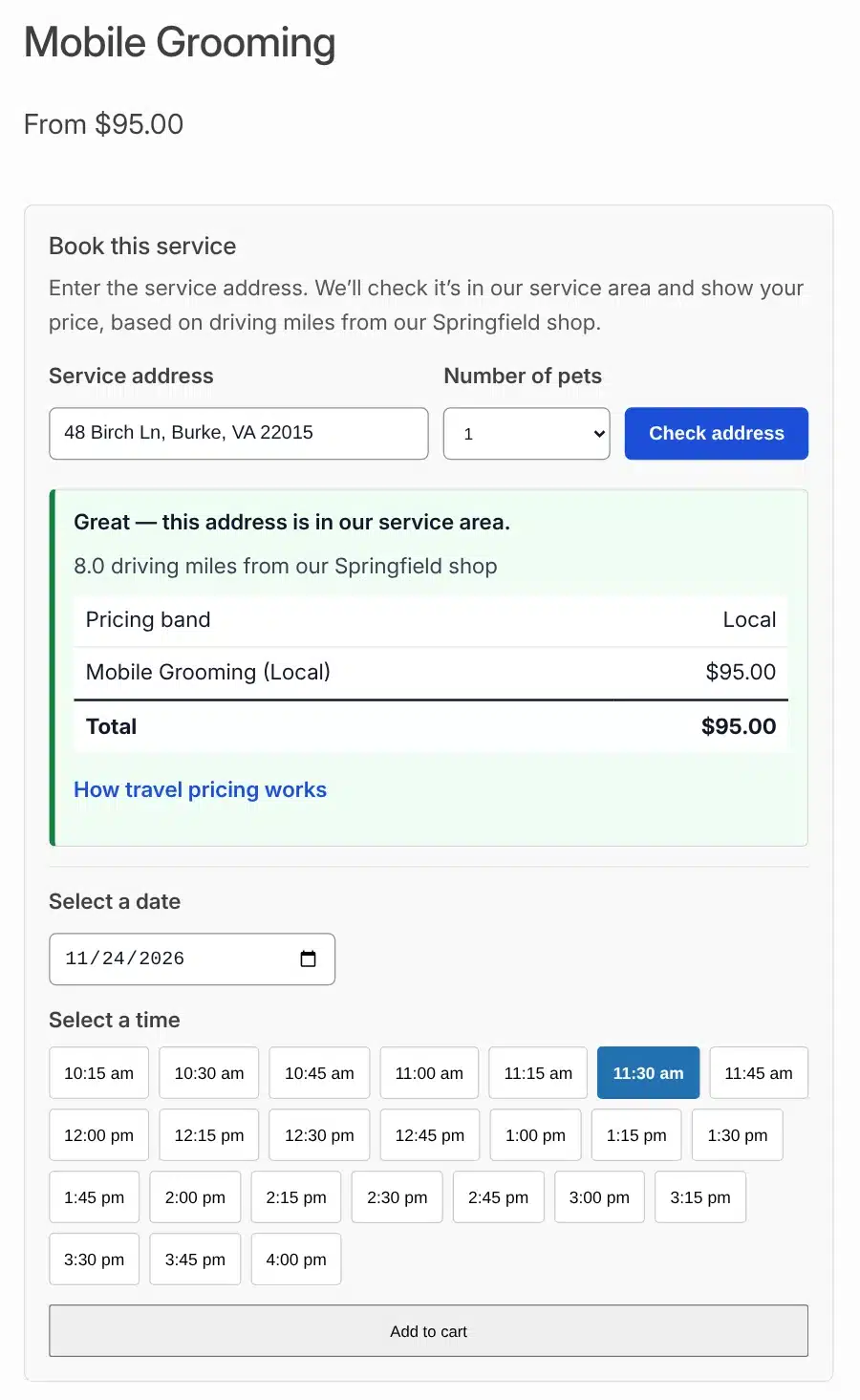
What the customer sees: address check, price, then the times you are free.
3. It only shows times you can actually do
Time slots come from your business hours, with more than one window per day if you break for lunch. You also set:
- how much notice you need before a booking,
- how far ahead people can book,
- how long a slot lasts, and
- a buffer between jobs for travel or clean-up.
Each product can use the store hours or its own.
4. It syncs with Google Calendar and Outlook
Connect your calendar and anything already on it blocks those slots on your site. When a booking is paid, it is added to your calendar and the customer is invited to the event.
5. It keeps every booking in one list
One screen shows each booking with the customer, product, address, distance and status. Filter by date, product or status, and click through to the order.
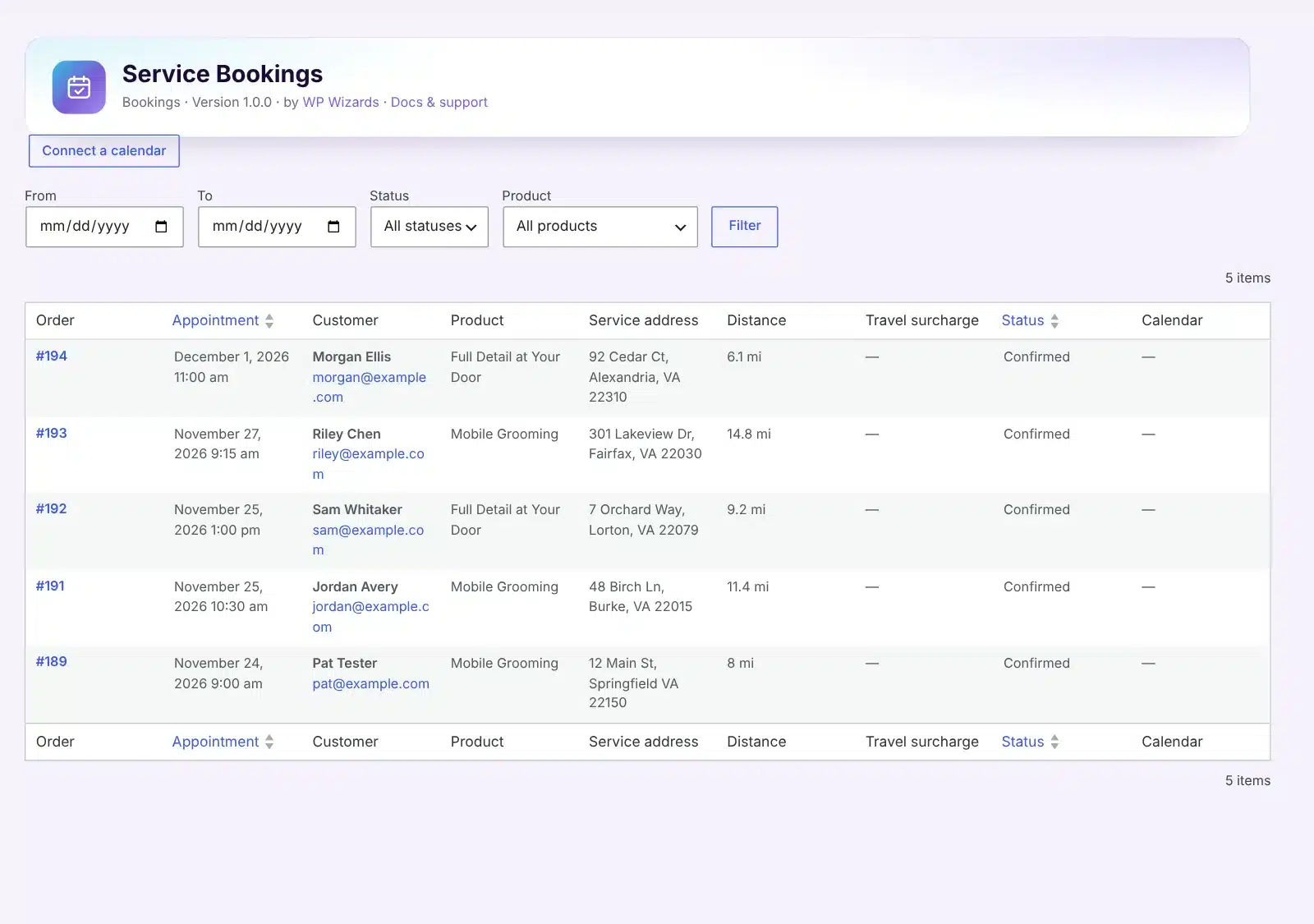
Every booking in one list, with the address and distance.
Let people check a price before they book
Not everyone is ready to book on the first visit, and a good WooCommerce booking plugin should not force them to. Add the [wpw_travel_quote] shortcode to any page and visitors can enter an address, choose a service and see their price. It is a simple way to answer “how much for my area?” without a phone call.
You can also charge per additional dog, vehicle or guest, and call that count whatever fits your business.
What to know before you install it
No WooCommerce booking plugin fits every business, so we would rather you know these up front:
- Every booking needs an address. It is made for services delivered at the customer’s location, not for appointments at your shop.
- The slot is held when the order is paid. An order waiting on an offline payment does not reserve the time until you mark it as processing.
- No deposits yet. The full price is charged at checkout. You can show a payment schedule for information.
- You need a Google key for the distance lookup. You add it on the Travel Pricing screen.
It works even better with Service Area Validator
As a WooCommerce booking plugin, Service Bookings runs on its own. Pair it with Service Area Validator and the two share one setup. Products can use the service areas you have drawn, and any booking address that is too far away lands on your Demand Map, so you can see where the next route should go.
If you were already using bookings inside Service Area Validator, nothing is lost. Bookings and travel pricing moved into this plugin in version 4.0. Install Service Bookings and it picks up the same settings, products and bookings.
How to get this WooCommerce booking plugin
Service Bookings is $59 a year for one site, with 5-site, unlimited and lifetime options on the plugin page. WP Wizards clients get it included, like every plugin in The Vault.
Setup takes three steps:
- Set your hours and booking rules under Bookings, then Settings.
- Add your starting address and Google key under Travel Pricing.
- Open a WooCommerce product, go to its Booking tab and switch it on.
Want us to set it up, or need a booking flow built around how your business works? Reach out to us, or read about our custom plugin development.
FAQ
Do I need Service Area Validator?
No. Service Bookings works by itself. The two share settings when both are installed.
Does it work without WooCommerce?
No. Bookings are WooCommerce products and are paid for through your normal checkout.
Can each service have its own hours?
Yes. Every product can use the store hours or its own weekly schedule.
Which calendars does it sync with?
Google Calendar and Microsoft Outlook. You choose which calendars block time and which one new bookings are added to.
Can I hide prices and only check the address?
Yes. Service area check only mode tells visitors whether you serve them without showing any prices.